Backing up your site is one of the most important things you can do and one of the biggest benefits to my Website Care Plans. Especially before running any software updates or major changes in content and layout. There is no built in way to backup a WordPress site. There are, however, a number of great plugins that make the job easy and can even automate the backups.
I highly recommend Duplicator which comes in a free and paid version. The free version is great and will do the job 99% of the time. The advantages of the paid version include automatic backups to Google Drive, Dropbox and more storage providers. The paid for pro version of the plugin also makes restoring your backup easier should you need to.
For the purpose of this post we are going backup a WordPress site using the free version of Duplicator available on the WordPress.org plugin directory.
Install Duplicator
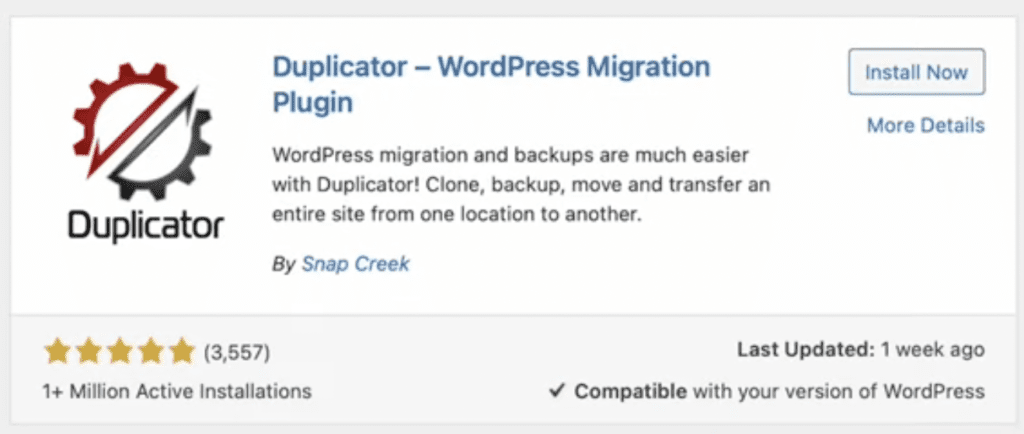
The first step is to install the Duplicator plugin. This can be done from within your WordPress admin dashboard by navigating to Plugins > Add New. From here search for Duplicator and you click Install Now.
After a short wait the button will change to a blue Activate button, click this and we can move into the next step.
Start Your WordPress Backup
Now the plugin installation is complete with have the means to backup WordPress from within the admin dashboard. There will now be a new menu item near the button of the WordPress admin menu called Duplicator. Clicking this will take us to a page that shows all backups we have already taken. As this is likely the first time you have installed the plugin there will be know backups here.
In the top right corner of this page you will find the “Create New” button. Click this and on the next screen you will be asked to give your backup a name. The name is prefilled with the date and time of the backup. I normally leave this as it is so I can easily track backups later. Click next to start scanning your WordPress site for files to backup.
The next screen once the scan completes will give you some information about your site and how big the backup is going to be. You may see some warnings about file sizes on large sites, most of the time these warnings can be ignored as a large backup file will not be a problem for a good hosting server. Check the box about warnings and click build.
Now all you need to do is wait. Depending on the size of your site a WordPress backup with Duplicator can take anywhere from 5 minutes to half an hour to run. Once it completes you will be taken back to the packages list and you will then be able to download your backup archive and an installer file. This installer file is important as it is what you will need to restore your backup in the future should you need to. Download both files and save them somewhere safe.
Unable to backup a WordPress site
Duplicator is a great way to easily backup a WordPress site, however, it is not perfect. Some servers lack the horsepower needed to complete a backup from within the WordPress dashboard. Before we give up on Duplicator there are some settings we can adjust to help with servers that run into errors.
You should only change one of these settings at a time and re-try your backup after changing each setting.
The first setting you should change is the archive type. Not all servers have the PHP extensions needed to create zip files. Go to Diplicator > Settings > Packages and under basic settings change the archive type to DupArchive. Try your running your WordPress backup again before moving on to the next setting tweak.
Some servers have process time limits to protect other users on the same server from resource hogs. To get around this Duplicator has a feature called client-side kickoff. Back on the packages settings screen click Advanced Settings. On this page look for “Client-side Kickoff” and check the enabled box. Again rerun the backup and check if it can complete.
if both of these settings fail to get a backup to run on your server you may need to look into options to manually backup your WordPress site via FTP and phpMyAdmin.