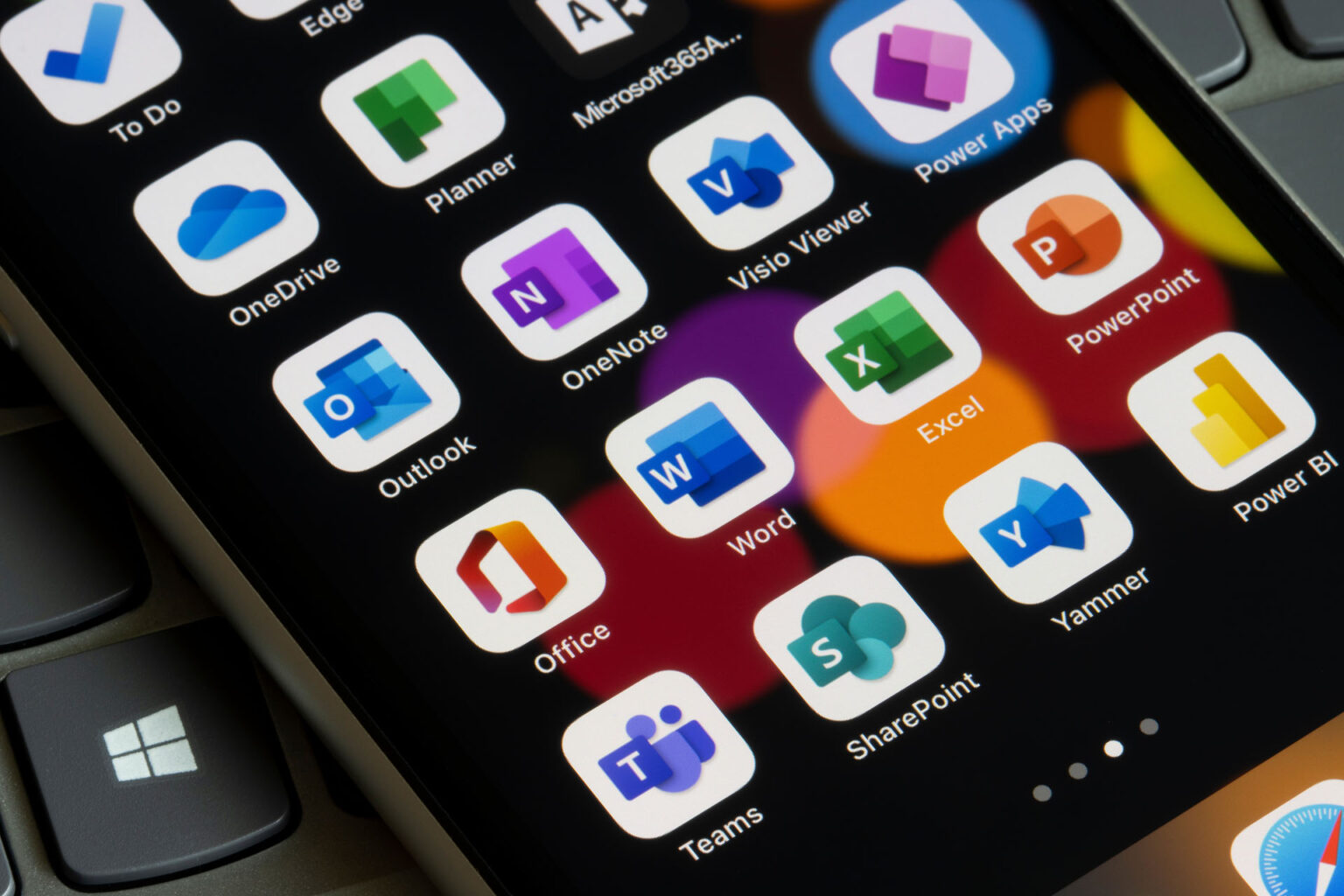
Personal experience and practical advice for a seamless Microsoft 365 transition
Switching from Apple to Windows can feel like stepping into a whole new world. If you’re used to the Apple ecosystem, the thought of moving to Windows might seem daunting, especially when it comes to keeping your workflow running smoothly. The good news? Microsoft 365 is designed to help you work effectively, no matter which platform you use. Whether you’re a business owner, professional, or just keen to get the most from your tech, I’m here to share my personal journey and some practical tips to help you make the most of Microsoft 365 across both Apple and Windows devices.
My Transition Story: From Apple to Windows
I still remember my first day with a new Windows laptop beside my trusty MacBook. I’d always been part of the Apple crowd—familiar with the sleek design, the shortcuts, and the way everything just ‘talked’ to each other. But when my business started growing, I needed tools that could keep up with a broader team, especially as we collaborated with clients using all sorts of devices. The decision to switch wasn’t easy. I worried about losing access to my files, learning new software, and, honestly, about feeling a bit lost.
That’s where Microsoft 365 came in. Because it works on both Apple and Windows, I didn’t have to leave behind the workflows I relied on. Instead, I found new ways to streamline my day and discovered features that made life easier for my team and clients alike.
Microsoft 365: Bridging the Gap
One of the things I love about Microsoft 365 is how it brings everything together. Whether I’m working on my iPad at home or jumping onto a Windows PC in the office, my emails, documents, and calendars are there waiting for me. The familiar look and feel of apps like Outlook, Word, and Teams means you’re never far from what you know—even if the device in front of you has a different logo.
Accessibility is a huge plus. With cloud-based storage through OneDrive, I can pick up where I left off on any device. And because Microsoft 365 is designed with flexibility in mind, it’s easy to share files, manage meetings, and stay productive, no matter if you’re a seasoned Windows user or just finding your feet.
Practical Tips for a Smooth Transition
- Sync Your Files with OneDrive: Set up OneDrive on both your Apple and Windows devices. This keeps your documents in the cloud and accessible wherever you are. No more emailing files to yourself or worrying about which device has the latest version.
- Get to Know the Office Apps: Word, Excel, PowerPoint, and Outlook all have versions for Mac and Windows. The layouts are slightly different, but the core features are the same. Don’t be afraid to explore—most shortcuts and menus will feel familiar after a few clicks.
- Master Your Email: Outlook is a powerful tool for managing emails, calendars, and tasks. Use Focused Inbox to keep the important stuff front and centre, and set up rules to sort messages automatically. This helps you stay organised, whether you’re on Mac or Windows.
- Embrace Teams for Collaboration: Teams works brilliantly across both platforms, letting you chat, call, and share files with ease. Try using the desktop app for more features, and tap into the mobile version for quick updates on the go.
- Personalise Your Experience: Change your settings to suit your style—adjust display themes, notifications, and accessibility options so you feel at home, no matter which device you’re using.
Remember, you’re not expected to become an expert overnight. Take it one step at a time, and celebrate the wins as you go.
Common Challenges and Simple Solutions
- File Compatibility: Worried about opening files between Mac and Windows? Microsoft 365 apps are designed to work seamlessly together. Save files in OneDrive and use the online versions if you ever hit a snag.
- Interface Differences: Some buttons might be in new places or have a slightly different look. If you’re ever unsure, use the ‘Tell Me’ search bar in Office apps—it’s a handy way to find what you need quickly.
- Keyboard Shortcuts: Shortcuts may differ between Apple and Windows. It’s worth printing a quick reference guide to keep nearby as you learn the ropes.
Most issues have straightforward fixes, and you’re never alone—there’s a wealth of support and resources to help you along the way.
We’re Here to Support You
Making the switch between Apple and Windows isn’t just about learning new tools—it’s about growing your confidence and finding new ways to succeed. At Matthew Temple Consulting, we’re passionate about helping you make technology work for you. Our team is always on hand to answer questions, share advice, or guide you through the process. If you’re feeling stuck, why not reach out? Let’s work together to make your transition smooth and stress-free.
Conclusion
Switching between Apple and Windows doesn’t have to be overwhelming. With Microsoft 365, you get the best of both worlds—flexibility, familiarity, and the tools you need to thrive. Give yourself time, take advantage of the resources available, and remember: you’re not alone on this journey. If you’d like to chat about your own transition or want tailored support, we’re just a click away. Let’s get started on making your digital workspace truly work for you.